How to Find Your IP Camera's RTSP URL - Complete Vendor Reference (2026)?
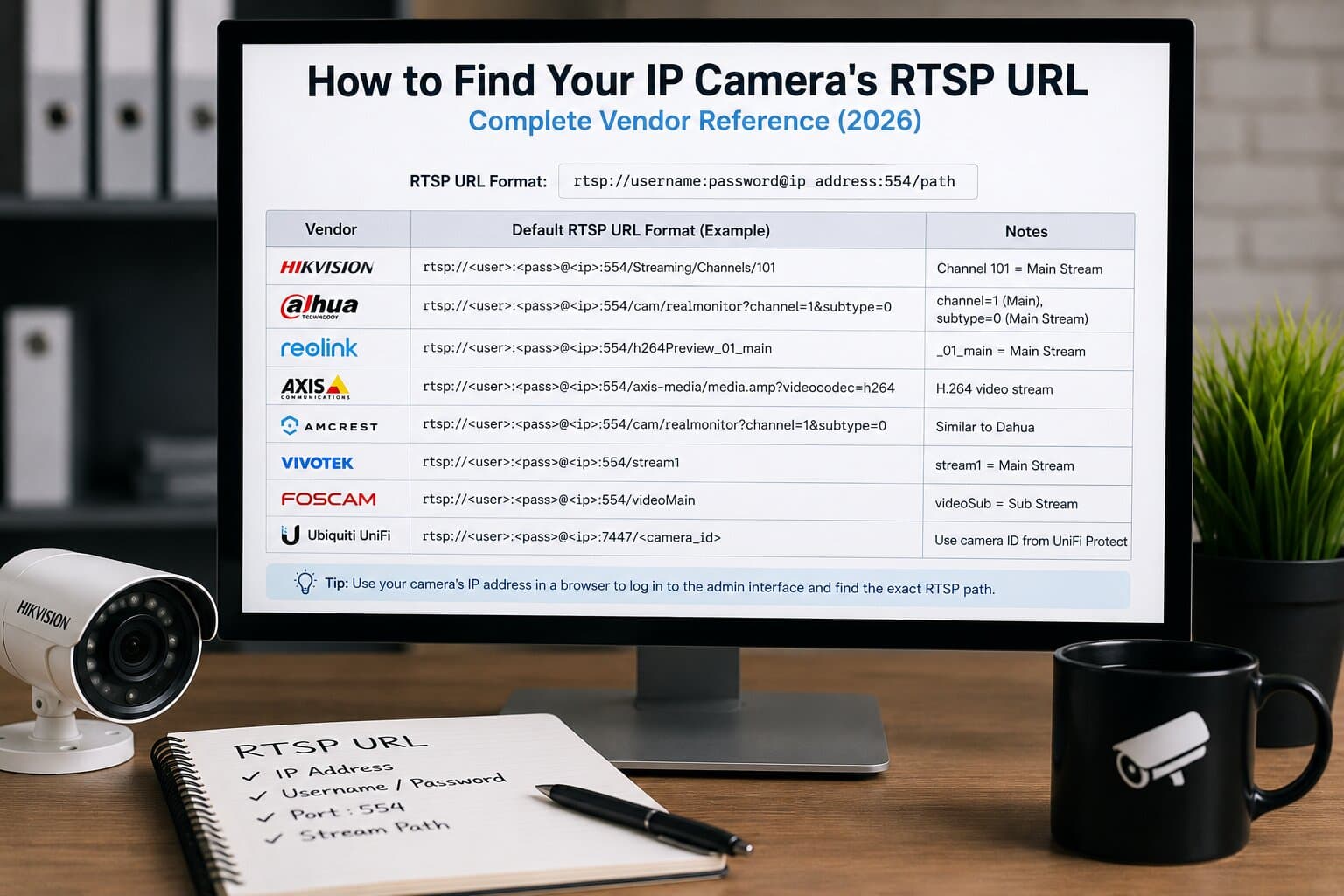
Every IP camera exposes its live feed via an RTSP URL using a predictable structure:
rtsp://username:password@camera-IP:554/stream-path
The stream path varies by vendor - Hikvision uses /Streaming/Channels/101, Dahua /cam/realmonitor?channel=1&subtype=0, Reolink /h264Preview_01_main.
Below you’ll find a complete vendor reference, exact formats, and how to test and use them in real setups.
Anatomy of an RTSP URL
An RTSP URL is not random, it’s structured and deterministic.
rtsp://username:password@host:port/path?query
Breakdown:
- Scheme: rtsp:// or rtsps:// (secure variant)
- Credentials: username:password (often required)
- Host: camera IP (e.g., 192.168.1.100)
- Port: default 554 (RTSP), sometimes 7441 (UniFi RTSPS)
- Path: vendor-specific stream endpoint
- Query: optional parameters (e.g., codec selection)
RTSP was defined in RFC 2326 (1998) and updated in RFC 7826 (2016). It typically works with H.264 or H.265 video streams (H.265 reduces bandwidth by ~50% at similar quality).
Complete vendor reference table
This is the core reference you’ll use most often:
Vendor | RTSP URL format | Default port | Notes |
Hikvision | rtsp://user:pass@IP:554/Streaming/Channels/101 | 554 | 101=main, 102=sub |
Dahua | rtsp://user:pass@IP:554/cam/realmonitor?channel=1&subtype=0 | 554 | subtype 0=main, 1=sub |
Reolink | rtsp://user:pass@IP:554/h264Preview_01_main | 554 | _main / _sub |
Amcrest | rtsp://user:pass@IP:554/cam/realmonitor?channel=1&subtype=0 | 554 | same OEM as Dahua |
Axis | rtsp://user:pass@IP/axis-media/media.amp | 554 | ?videocodec=h264 |
Ubiquiti UniFi Protect | rtsps://IP:7441/<stream_key> | 7441 | TLS; stream key w UI |
These formats cover the majority of cameras used in production environments today.
Per-vendor deep dive
Hikvision
rtsp://user:pass@IP:554/Streaming/Channels/101
rtsp://user:pass@IP:554/Streaming/Channels/102
- 101 = main stream (full resolution)
- 102 = sub stream (lower bitrate)
- ONVIF typically runs on port 8000
Dahua
rtsp://user:pass@IP:554/cam/realmonitor?channel=1&subtype=0
rtsp://user:pass@IP:554/cam/realmonitor?channel=1&subtype=1
- subtype=0 = main stream
- subtype=1 = sub stream
Reolink
rtsp://user:pass@IP:554/h264Preview_01_main
rtsp://user:pass@IP:554/h264Preview_01_sub
Optional H.265 variant:
rtsp://user:pass@IP:554/h265Preview_01_main
Amcrest
Same structure as Dahua (same OEM):
rtsp://user:pass@IP:554/cam/realmonitor?channel=1&subtype=0
Axis
rtsp://user:pass@IP/axis-media/media.amp
rtsp://user:pass@IP/axis-media/media.amp?videocodec=h264
Axis often supports additional parameters via query strings.
Ubiquiti UniFi Protect
rtsps://IP:7441/<stream_key>
- Uses RTSPS (TLS)
- Stream key is generated inside UniFi Protect UI
- Port: 7441
How to test RTSP URL in VLC
The fastest validation method:
- Open VLC
- Go to: Media → Open Network Stream
- Paste your RTSP URL:
rtsp://admin:[email protected]:554/Streaming/Channels/101
- Click Play
If it works in VLC, your RTSP URL is valid.
How to discover RTSP URL with ONVIF Device Manager
If documentation fails or the vendor doesn’t clearly specify the RTSP path, ONVIF is often the most reliable fallback. Most modern IP cameras support ONVIF, which exposes stream profiles and connection details directly from the device.
Start by installing ONVIF Device Manager on your computer and launching the application. Once opened, it automatically scans your local network and lists all compatible cameras it can detect. This eliminates the need to manually guess IP addresses or endpoints.
After selecting your camera from the list, navigate to the video or live view section. ONVIF Device Manager will display available stream profiles, including both the main stream (full resolution) and sub stream (lower bitrate). It also reveals encoding settings such as H.264 or H.265, along with the exact RTSP URL associated with each profile.
ONVIF communication typically runs on port 8000, although this may vary depending on the manufacturer. Because the tool pulls data directly from the camera, it bypasses the need for vendor-specific documentation and gives you accurate, ready-to-use RTSP paths.
In practice, this is one of the fastest and most reliable methods to discover RTSP URLs, especially when working with unfamiliar models or OEM devices where the stream format isn’t clearly documented.
From RTSP URL to public web stream (Realtime walkthrough)
Once you have your RTSP URL, turning it into a public stream is straightforward:
- Paste RTSP URL into Realtime.
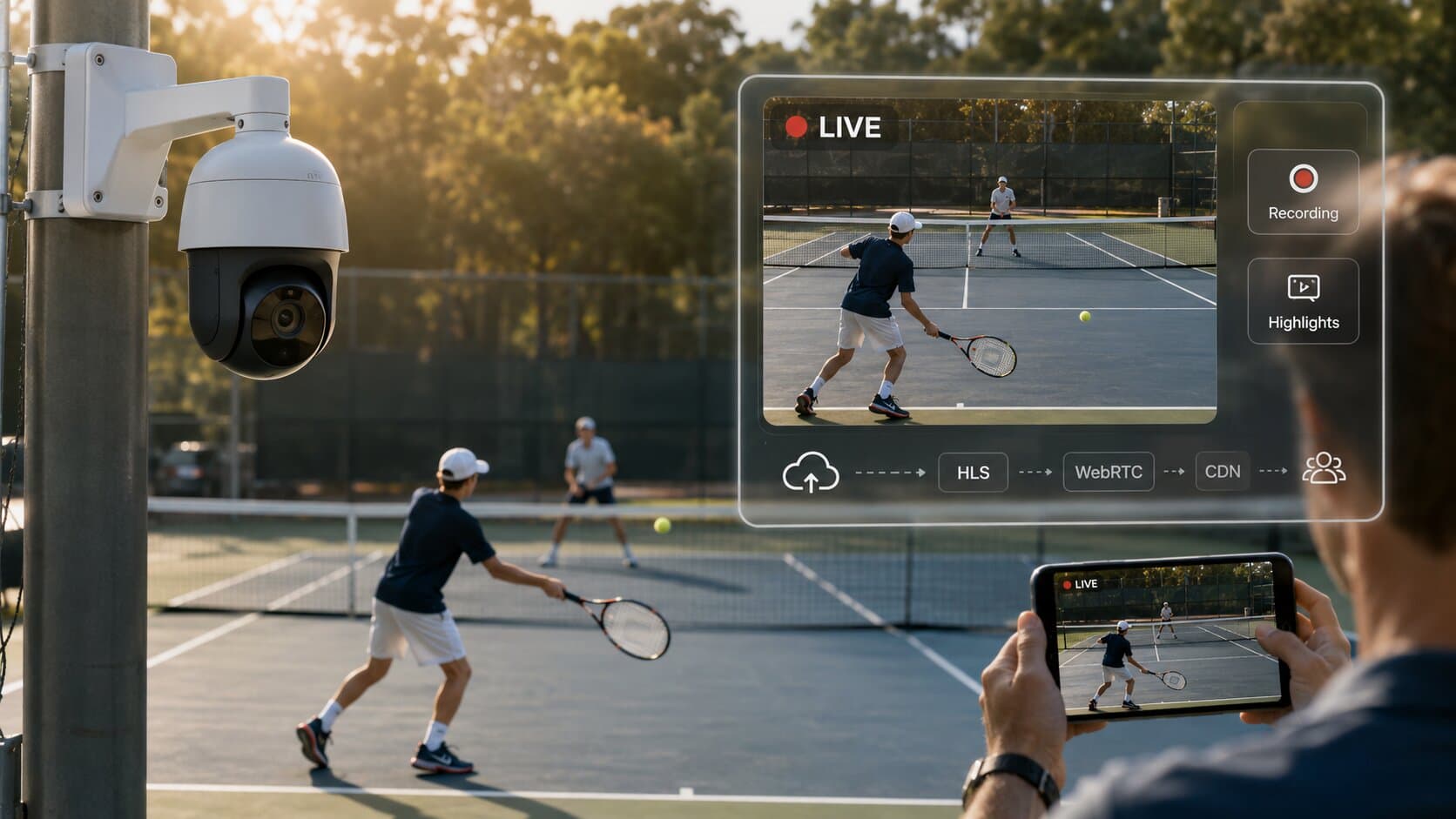
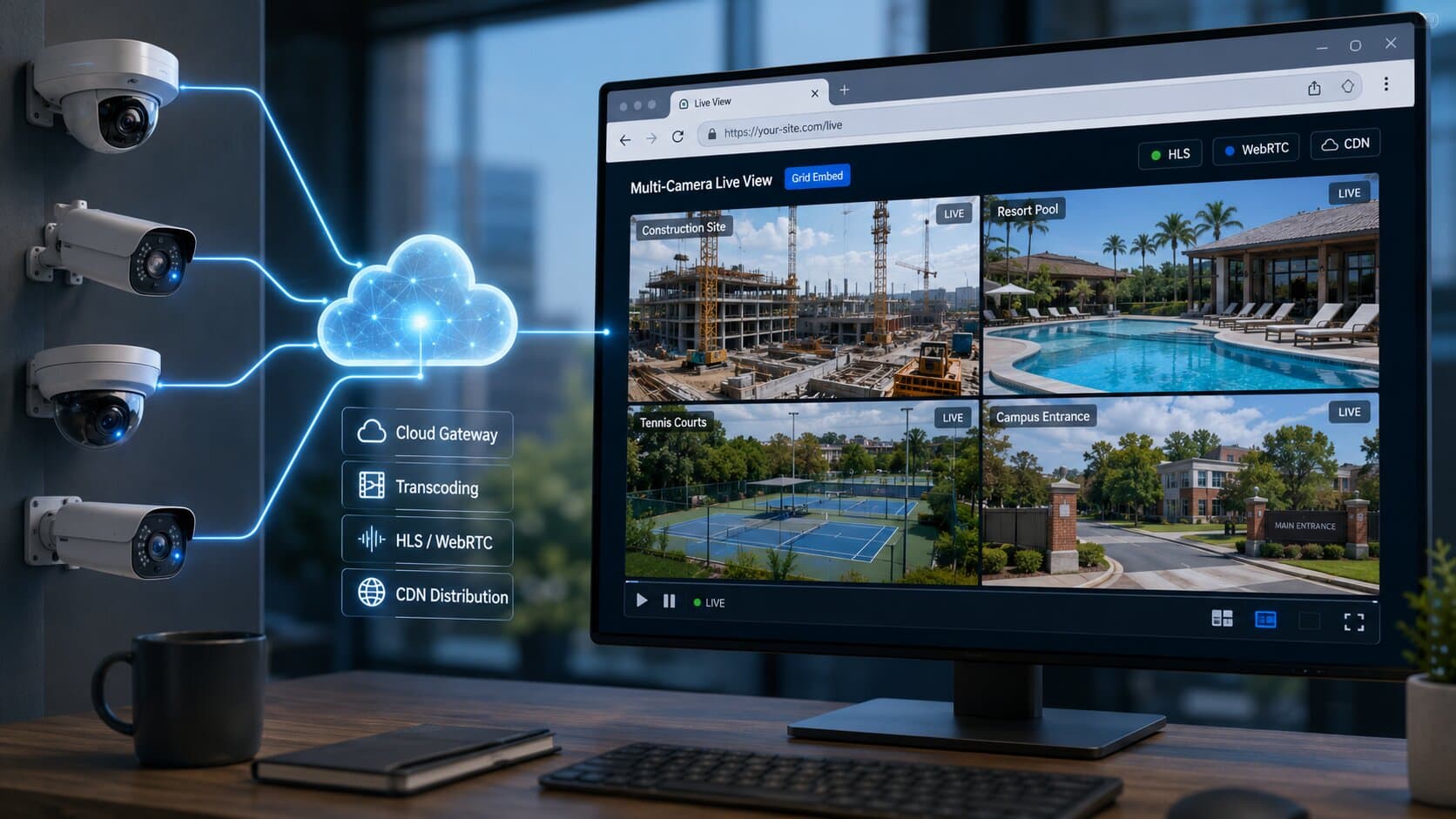
- Cloud Gateway connects outbound (no port forwarding, no DDNS, no VPN).
- Realtime converts:
- RTSP → HLS (6–30s latency)
- RTSP → WebRTC (<1s latency)
Result: a ready-to-embed player delivered via global CDN with unlimited viewers.
Troubleshooting
Here are the most common issues:
- 401 Unauthorized → wrong username/password
- 404 Not Found → incorrect stream path
- Timeout → blocked port or firewall
- Black screen → codec mismatch (H.265 unsupported in some players)
- No response → ICMP blocked or wrong IP
Always start debugging locally before testing remotely.
Public RTSP test streams
Use these for quick testing:
rtsp://wowzaec2demo.streamlock.net/vod/mp4:BigBuckBunny_115k.mov
rtsp://184.72.239.149/vod/mp4:BigBuckBunny_175k.mov
rtsp://rtsp.stream/pattern
These are useful for validating players and pipelines.
FAQ
How do I get the RTSP stream URL from a camera?
Log into the camera or use ONVIF Device Manager, then combine IP, credentials, and vendor-specific path.
What is the default RTSP port?
Port 554 for RTSP, 322 for RTSPS, and 7441 for UniFi Protect.
Is there a free RTSP stream URL for testing?
Yes, public demo streams like Wowza Big Buck Bunny are commonly used.
Does RTSP require authentication?
Most cameras require username and password, though some allow anonymous access.
Can I view RTSP URL in a browser?
No, browsers require conversion to HLS or WebRTC.
Final step
Once you have your RTSP URL, the fastest way to make it usable online:
Paste your RTSP URL into Realtime - get a live embed in 3 clicks, no port forwarding.