How to embed an IP camera live feed on your website (without port forwarding)?

You can embed an IP camera stream on your website in three steps:
- Connect your camera to Realtime via an outbound Cloud Gateway,
- generate an HLS or WebRTC player,
- paste the iframe into your HTML or CMS.
No port forwarding, no static IP, no media server. Setup takes under 5 minutes and works with Hikvision, Dahua, Reolink, Axis, and more.
The old way: port forwarding (and why it’s risky)
Port forwarding used to be the default method for exposing an IP camera stream to the internet. You’d open port 554 (RTSP) or HTTP ports on your router and map them to your camera.
It works - but it’s risky.
Risk | Explanation |
Open attack surface | Public exposure of camera ports allows scanning and brute-force attempts |
CVE-2017-7921 | Hikvision vulnerability that exposed admin access remotely |
Mirai botnet (2016) | ~600,000 IoT devices infected via default credentials |
Default passwords | Many cameras ship with weak or unchanged credentials |
MAC/IP exposure | Devices become fingerprintable from the public internet |
Once you open ports, your camera is no longer private infrastructure—it’s a public endpoint. Even with DDNS or VPN, you’re adding complexity and operational risk.
The modern way: outbound Cloud Gateway
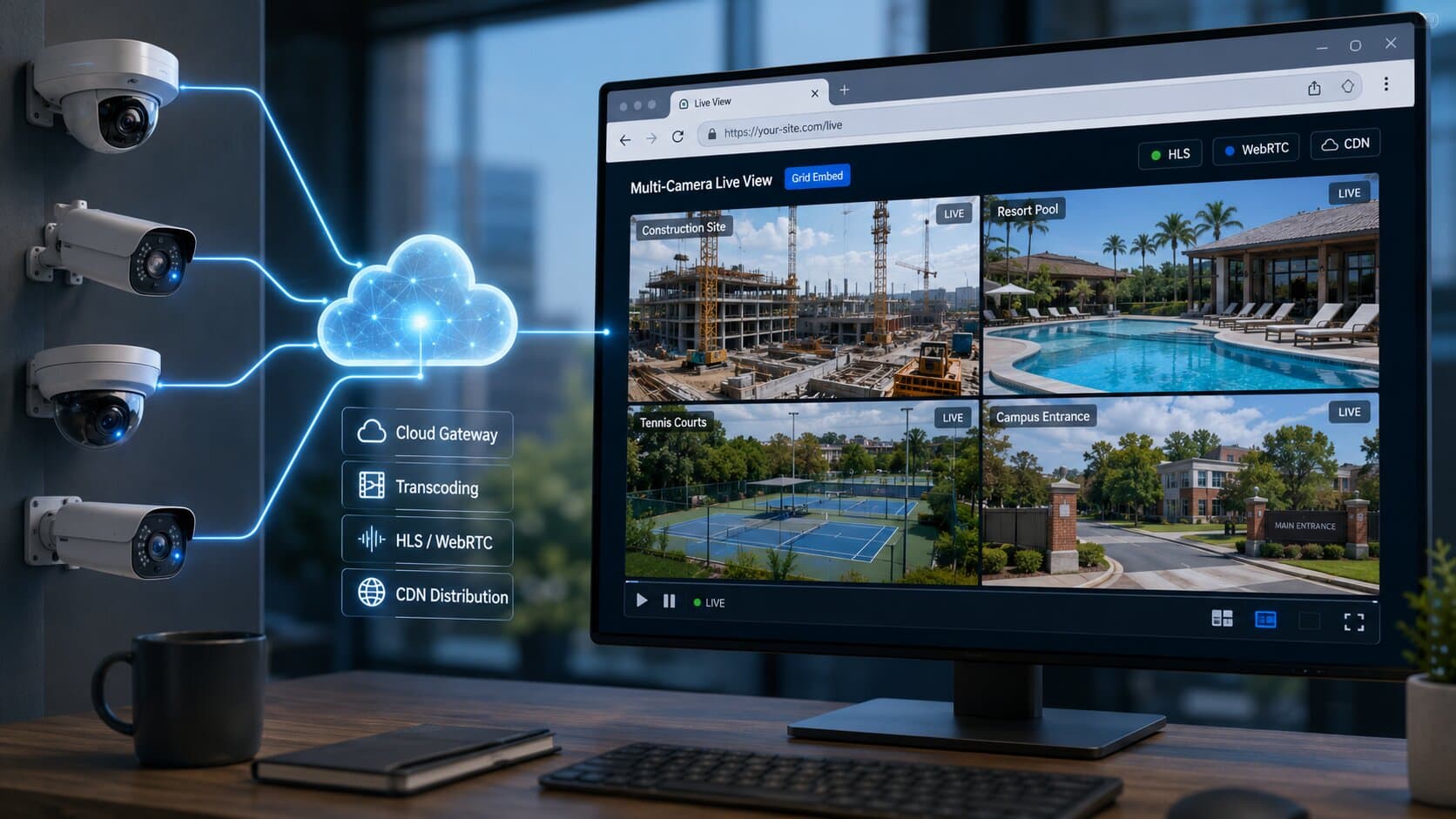
Instead of exposing your camera, you let the camera initiate a secure outbound connection.
This is what Realtime’s Cloud Gateway does.
Think of it like this: your camera connects out to the cloud (just like opening a website), so there’s no need for NAT traversal tricks, port forwarding, or static IPs. The connection is outbound-only, which means your firewall stays closed.
Behind the scenes:
- RTSP is ingested securely
- Automatically transcoded to HLS (6-30s latency) and WebRTC (<1s latency)
- Delivered via a global CDN
No router changes. No DevOps. No exposure.
Step-by-step embed walkthrough
WordPress (Gutenberg)
- Add a Custom HTML block.
- Paste the iframe embed code.
- Publish.
<iframe src="https://player.realtime.co/stream/abc123" width="100%" height="480" allow="autoplay; fullscreen"></iframe>
Webflow
- Drag an Embed element.
- Paste the iframe.
- Adjust width/height in the designer.
Wix
- Add Embed → Custom Embed.
- Select HTML iframe.
- Paste the code.
Raw HTML / static site
<iframe src="https://player.realtime.co/stream/abc123" width="100%" height="480" allowfullscreen></iframe>
This works identically across any frontend stack.
Embed code anatomy
Here’s what’s actually happening under the hood.
Iframe (recommended)
<iframe
src="https://player.realtime.co/stream/abc123"
width="100%"
height="480"
allow="autoplay; fullscreen"
allowfullscreen>
</iframe>
- Loads a hosted player
- Handles HLS/WebRTC automatically
- Zero frontend logic required
HTML5 video with hls.js (advanced)
<video id="video" controls autoplay muted playsinline width="100%"></video>
<script src="https://cdn.jsdelivr.net/npm/hls.js@latest"></script>
<script>
const video = document.getElementById('video');
const hls = new Hls();
hls.loadSource('https://cdn.realtime.co/stream/abc123.m3u8');
hls.attachMedia(video);
</script>
- Needed for Chromium browsers (Chrome, Edge)
- Safari supports HLS natively
Customizing the player
You’re not stuck with a generic player. With Realtime, you can:
- Add your logo and brand colors.
- Enable autoplay (note: Chrome/Safari require muted).
- Set a poster frame before playback.
- Toggle controls (fullscreen, play, timeline).
- Enable recording, timelapse, clips.
This matters if you’re embedding on a public-facing site like a hotel, gym, or school.
Why a CDN matters
Here’s the part most people underestimate: scaling. A typical router or NVR can handle about 5-10 concurrent viewers before performance degrades.
Now compare that to a CDN:
Source | Concurrent viewers |
Direct camera / router | ~5-10 |
Self-hosted server | ~50-500 (depends) |
CDN (Realtime) | Unlimited |
CDN distributes the stream globally, offloading your network completely. That’s the difference between a private feed and a public live stream.
Real-world examples
Hotel lobby camera
A resort streams its lobby camera to its website. Guests can check occupancy before arrival. Branding is customized with the hotel logo and colors.
Construction site camera
A developer embeds a live stream showing build progress. Timelapse and recording features allow stakeholders to review history.
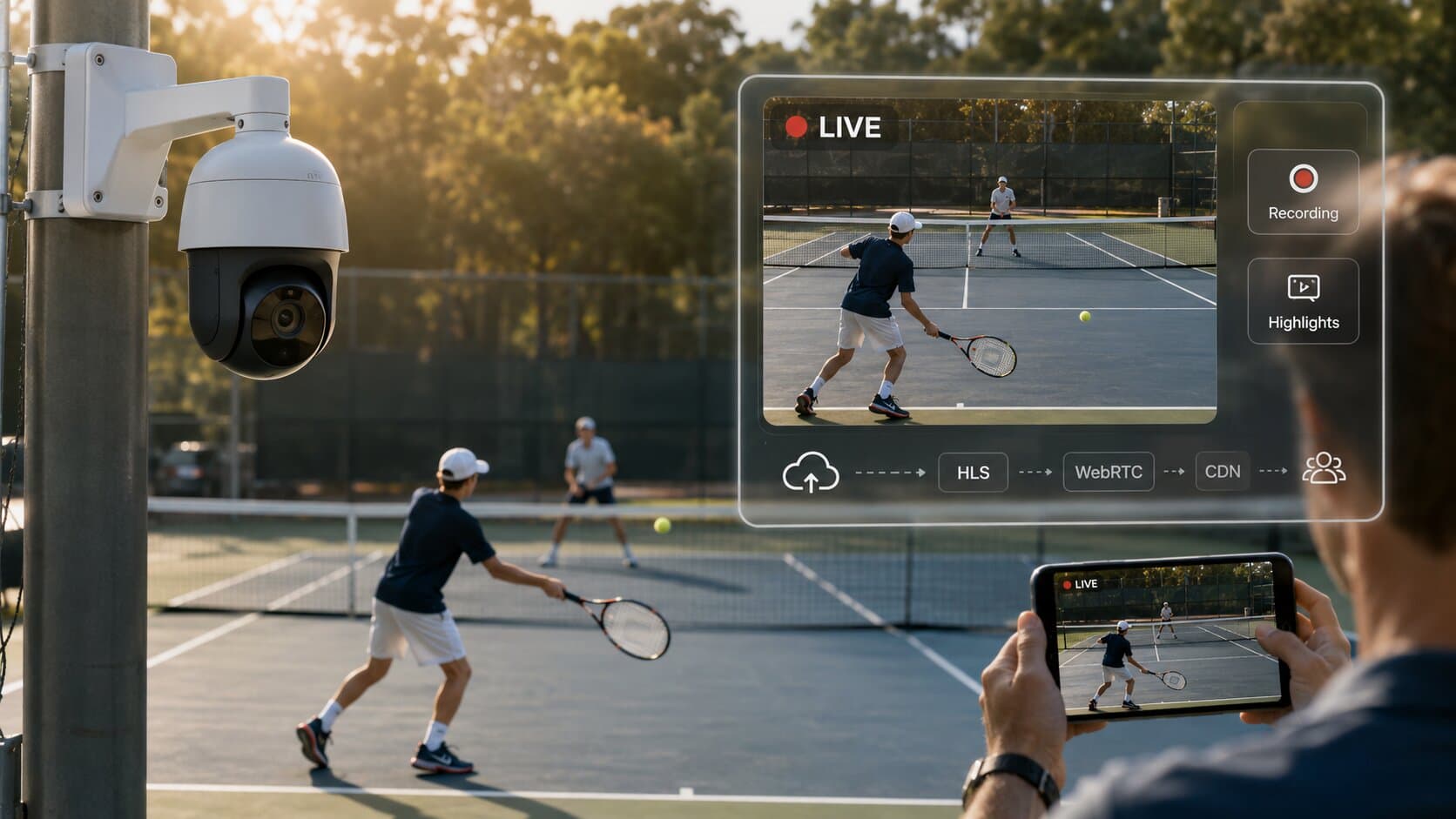
Tennis court stream
A club streams matches live. Members watch remotely, and simulcast sends the same feed to YouTube Live and Facebook simultaneously.
FAQ
Can I embed an IP camera without a static IP?
Yes, using an outbound Cloud Gateway removes the need for static IP, DDNS, or port forwarding.
Do I need a media server?
No, Realtime replaces FFmpeg, Wowza, and Ant Media with a managed cloud pipeline.
How many viewers can watch at once?
With a CDN, effectively unlimited; without it, most routers handle only 5-10 concurrent streams.
Does it work with Hikvision / Dahua / Reolink?
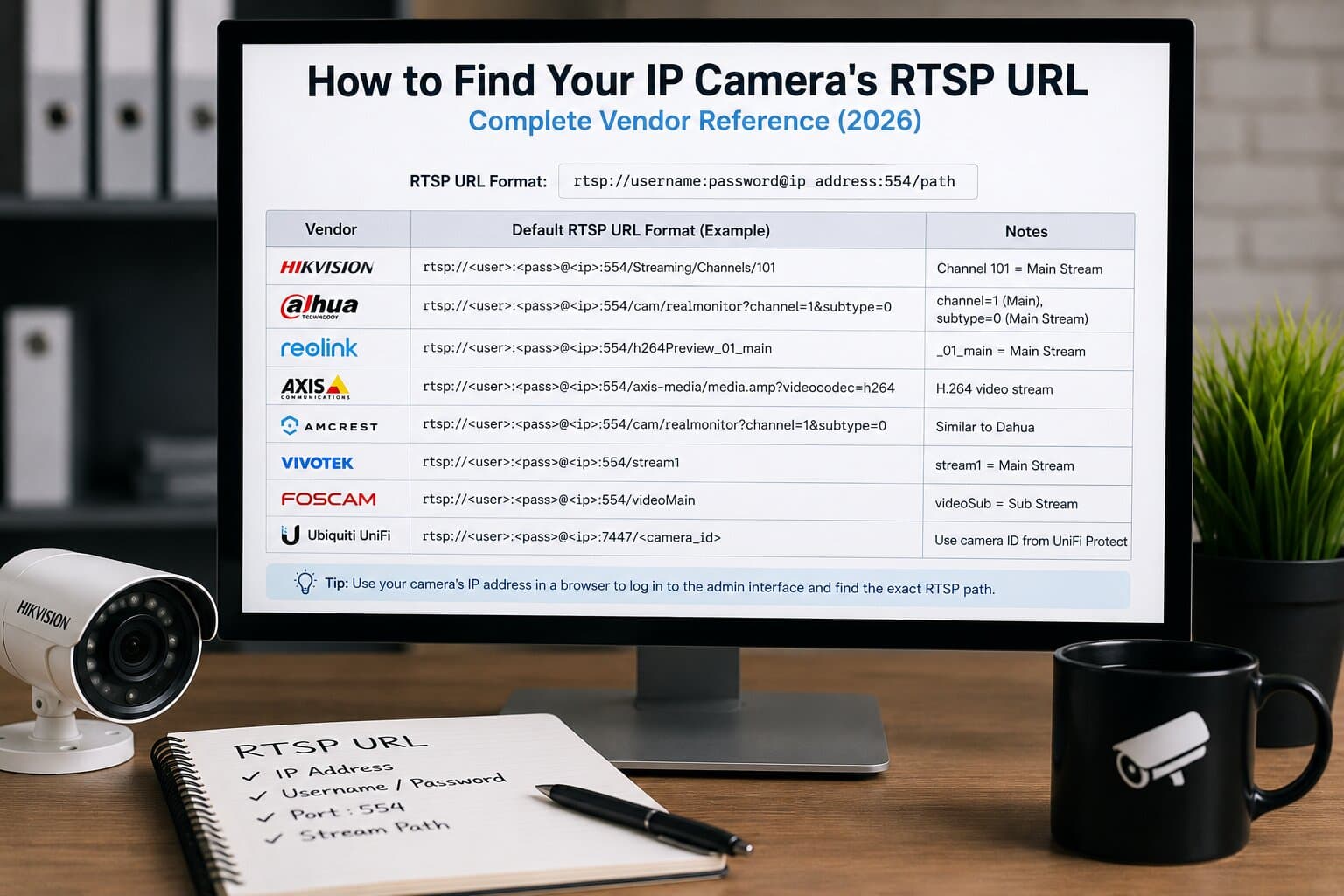
Yes, Realtime supports Hikvision, Dahua, Reolink, Amcrest, Axis, Ubiquiti UniFi Protect, Foscam, Vivotek, and Bosch.
Final step
If you want to embed an IP camera stream without dealing with ports, servers, or scaling issues: Start a free trial of Realtime. Paste your RTSP URL → get an embed in under 5 minutes.