RTSP Stream - Configuration and Implementation Guide
The Real-Time Streaming Protocol (RTSP) remains one of the most powerful and reliable methods for transmitting live video over IP networks.

From IP cameras and NVRs to encoders, industrial monitoring, church streaming, and multi-camera broadcast workflows, an RTSP stream enables low-latency, high-control video delivery across local and remote environments.
This guide walks through RTSP fundamentals, configuration steps, implementation best practices, optimization techniques, and real-world examples. It is designed for technicians, AV integrators, developers, and anyone deploying professional live video systems.
Understanding RTSP Streams
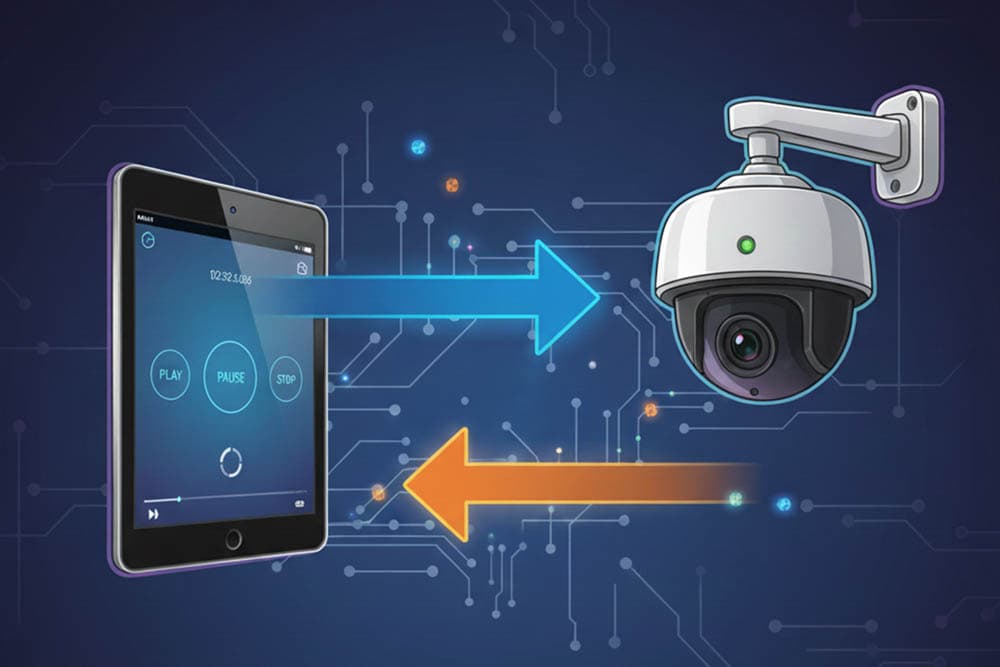
RTSP acts as a command-and-control layer for real-time media. Rather than carrying video itself, it manages how the media is transmitted over the network using RTP/RTCP. This separation ensures low latency and precise session control-ideal for surveillance, monitoring, and professional video workflows.
An RTSP session typically follows commands like:
- DESCRIBE - retrieves media details such as codec, resolution, and SDP data.
- SETUP - negotiates the transport method (TCP or UDP).
- PLAY - begins the live stream.
- PAUSE - stops the stream temporarily.
- TEARDOWN - closes the session.
The default RTSP port is 554, although many modern devices allow custom port assignments for security.
RTSP Stream - Basic Configuration
Setting up an RTSP stream begins with proper network configuration. RTSP devices-IP cameras, hardware encoders, or NVRs-should use a static IP address to ensure the stream URL never changes. DHCP can cause instability, especially in multi-camera systems.
RTSP URLs vary by manufacturer, but generally follow formats such as:
- rtsp://192.168.1.10:554/Streaming/Channels/101
- rtsp://user:[email protected]:554/rtsp/streaming?channel=1&subtype=0
- rtsp://192.168.1.20:554/unicast/c1/s0/live
Once the device is configured, test the RTSP stream using a media player such as VLC, which provides immediate debugging feedback.
Safari supports RTSP natively, but most browsers require proxying or protocol translation (HLS, WebRTC, DASH).
Implementation Workflow
Configuring an RTSP stream follows a straightforward, repeatable pipeline:
1. Enable or install the RTSP server
Most IP cameras include built-in RTSP output. For custom pipelines, common servers include:
- Live555
- MediaMTX (rtsp-simple-server)
- Wowza Streaming Engine
2. Configure stream settings
Specify resolution, codec (H.264/H.265), frame rate, GOP size, and bitrate. H.264 remains the most compatible standard for RTSP playback.
3. Manage network access
Open port 554 and required RTP/RTCP ports. For remote streaming, configure port forwarding on your router and update URLs accordingly.
4. Convert RTSP to browser-friendly formats
RTSP cannot be played natively in most browsers. To embed video on websites, convert RTSP to HLS or WebRTC using tools like:
ffmpeg -i rtsp://source-url -f hls output.m3u8
5. Integrate with streaming software
Tools such as OBS Studio, vMix, and VideoSDK can ingest RTSP for multicam or broadcast workflows.
Optimizing RTSP Stream Quality
Improving the stability and clarity of an RTSP stream requires tuning both encoding and network variables. Key considerations include:
- Transport mode:
UDP = lower latency
TCP = better reliability on congested networks - Bitrate and resolution:
Match bitrate to available upload capacity to prevent buffering. - GOP structure:
Shorter GOP reduces latency; longer GOP improves compression efficiency. - Network stability:
Use wired Ethernet instead of Wi-Fi for critical video. - Sub-streams:
Provide lower-resolution versions for remote users or analytics systems.
These adjustments dramatically improve long-term reliability, especially in multi-camera environments.
Troubleshooting Common RTSP Issues
Many RTSP stream problems are predictable and easy to diagnose:
Stream does not load - this is often caused by incorrect URL formatting, authentication failures, unsupported codecs (H.265), or blocked ports.
High latency - TCP tunneling, oversized GOP settings, or heavy encoding loads on the device commonly increase latency.
Stuttering or packet loss - Wi-Fi interference, insufficient bandwidth, or lack of QoS prioritization for RTP packets may cause frame drops.
Black screen in VLC - this typically points to authentication errors, unsupported resolutions, or incorrectly negotiated transport.
Running an FFmpeg pull or checking the device logs usually identifies the root cause quickly.
Practical Use Cases for RTSP Streams
RTSP remains a cornerstone of real-time video across industries:
Surveillance and Security - NVRs, VMS platforms, and analytics systems use RTSP to ingest camera feeds with minimal delay.
Church and Event Streaming - many churches combine multiple RTSP cameras in OBS or vMix, producing livestreams with synchronized multi-angle coverage.
Industrial and Construction Monitoring - RTSP enables real-time oversight of equipment, safety zones, and workflow processes.
Education and Lecture Capture - universities integrate RTSP PTZ cameras into centralized recording systems.
Custom Development and AI - developers rely on RTSP streams for computer vision, object detection, and machine learning pipelines.
Its flexibility and low-latency characteristics make RTSP indispensable for modern real-time video solutions.
Conclusion
An RTSP stream is one of the most robust and versatile methods for delivering real-time video across local and remote networks. With proper configuration, optimized encoding, and reliable network design, RTSP can power everything from simple IP cameras to complex multi-camera broadcast systems.
Whether you’re building a security deployment, a professional livestreaming setup, or a custom AI video application, understanding RTSP gives you a powerful foundation for modern video infrastructure.
%2520(3).png&w=3840&q=75)