IP Cam - Complete Guide to Internet Protocol Cameras
Learn what an IP cam is, how it works, and how to set it up. Discover features, network configuration, security, and live streaming integration.
%2520(11).png&w=3840&q=75)
What Is an IP Cam?
An IP cam (Internet Protocol camera) is a digital video camera that transmits footage over a network using standard IP protocols. Unlike traditional analog CCTV systems that require coaxial cabling and DVR recorders, IP cameras capture, process, and transmit video digitally through Ethernet or Wi-Fi networks. This architecture enables:
- higher video resolution (Full HD, 4K, and beyond),
- remote access from browsers and mobile apps,
- integration with NVRs, servers, or cloud platforms,
- advanced features such as AI detection and smart alerts.
IP cameras are now the standard for professional surveillance, live monitoring, and even hybrid security-plus-streaming environments.
How IP Cameras Work
An IP cam combines optical hardware with embedded computing. The process typically follows these steps:
- The lens captures light and directs it to an image sensor.
- The sensor converts the image into a digital signal.
- An onboard processor compresses the video using codecs such as H.264 or H.265.
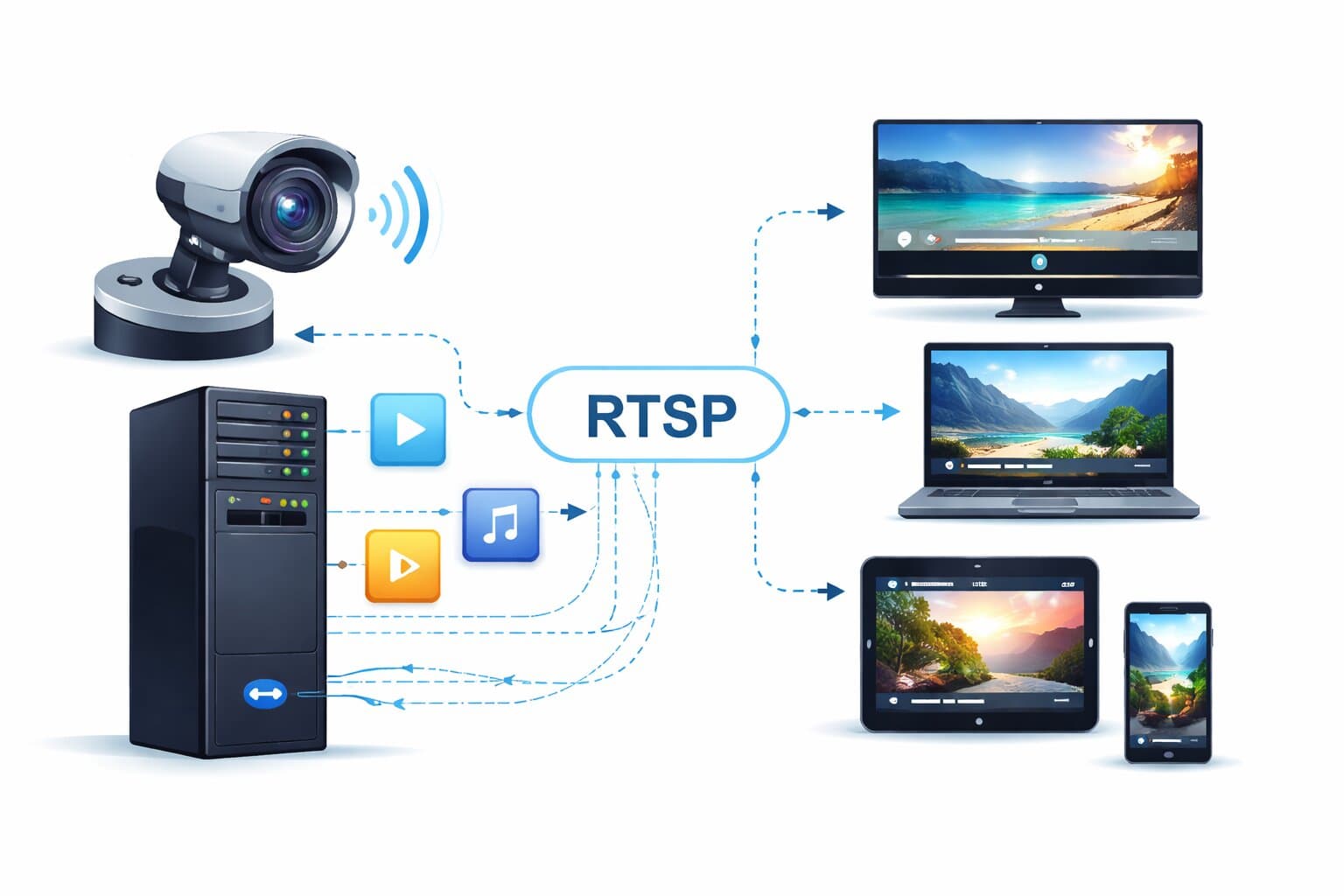
- The camera transmits the stream over the network using protocols like RTSP or HTTP.
- The footage is stored locally (SD card), on an NVR, or in the cloud.
Unlike analog systems, IP cameras do not require a central DVR for encoding. Each device operates as an independent network endpoint with its own IP address. There are two common storage architectures:
- Centralized storage, where multiple IP cameras send streams to a Network Video Recorder (NVR).
- Decentralized storage, where each camera records to internal storage or cloud services.
Key Types of IP Cameras
Different environments require different camera types. The most common IP cam categories include:
Fixed IP Cameras
These cameras provide a stationary field of view. They are ideal for entry points, corridors, and areas that require continuous monitoring of a defined space.
Varifocal IP Cameras
These models allow adjustable focal length, either manually or remotely. They offer flexibility when coverage needs change without physically relocating the camera.
PTZ (Pan-Tilt-Zoom) IP Cameras
PTZ cameras provide remote pan, tilt, and optical zoom capabilities. They are used in:
- large facilities,
- warehouses,
- manufacturing halls,
- public venues,
- outdoor perimeter security.
PTZ IP cameras can cover wide areas dynamically and often include auto-tracking features powered by AI.
Core Features of Modern IP Cameras
Modern IP cam technology offers significantly more functionality than legacy CCTV systems.
High-Resolution Video
Full HD (1080p) is now standard. Professional environments increasingly use 4K resolution for improved detail and digital zoom clarity.
Power over Ethernet (PoE)
PoE allows both power and data transmission over a single Ethernet cable. This simplifies installation and reduces cabling complexity.
Remote Access
Users can access live feeds and recordings through:
- web browsers,
- mobile applications,
- video management systems (VMS).
Smart Analytics
Many IP cameras include built-in AI features such as:
- motion detection,
- line crossing alerts,
- face detection,
- object classification.
These features reduce false alarms and improve security automation.
Weather Resistance
Outdoor IP cam models typically feature IP65 or IP67 ratings, ensuring resistance against dust and water exposure.
Installation and Network Configuration
Proper installation determines performance and security.
Physical Installation
- Mount the camera at optimal height and angle for the desired field of view.
- Avoid direct glare from sunlight or strong backlighting.
- Use stable mounting hardware to prevent vibration.
Network Setup
- Connect the IP cam via Ethernet (recommended) or Wi-Fi.
- Assign an IP address (DHCP or static).
- Access the camera’s web interface.
- Change default credentials immediately.
- Configure stream settings (resolution, bitrate, compression).
For professional deployments, it is recommended to:
- Assign static IP addresses
- Place cameras on a dedicated VLAN
- Use PoE switches for centralized power management
IP Cameras for Live Streaming
While primarily used for surveillance, IP cams can also support live streaming. If streaming is required, ensure the camera supports:
- RTSP output,
- RTMP compatibility (direct or via server),
- ONVIF for interoperability,
- H.264/H.265 encoding.
This allows integration with:
- OBS Studio,
- Streaming servers,
- NGINX RTMP setups,
- Professional broadcast workflows.
For reliable live streaming, wired Ethernet connections are strongly recommended over Wi-Fi.
Security Best Practices for IP Cameras
IP cameras are network devices and must be secured like any other IT asset.
Change Default Credentials
Never leave factory usernames and passwords active.
Update Firmware
Install updates from official sources to patch vulnerabilities.
Disable Unused Services
Turn off features such as:
- UPnP,
- P2P cloud access (if not required),
- Unused ports.
Restrict Network Access
- Avoid direct internet exposure via port forwarding.
- Use VPN for remote access.
- Apply firewall rules and IP whitelisting.
Monitor Logs
Review login attempts and unusual network traffic regularly.
Advantages of IP Cameras Over Analog CCTV
IP cams offer clear operational advantages:
- higher image quality,
- scalable infrastructure,
- remote management,
- smart automation,
- easier integration with IT systems.
For businesses, they provide improved monitoring efficiency and long-term scalability. For homes, they offer flexibility and mobile access.
Making the Right Choice
An IP cam is more than just a security device. It is a network-connected video system capable of high-resolution streaming, remote management, and intelligent monitoring.
Whether used for home protection, business surveillance, industrial environments, or integrated live streaming workflows, IP cameras provide scalable and future-ready infrastructure.